
Select "Submit Loyalty Claim Form" to begin the claim submittal process

If the claim is for one of the Preferred Vendors listed select "Yes" otherwise select "No"

Select the Loyalty "Program Year" and then select "Check Available Balance"
Please Note: System auto-populates all known details

Accrual claim balance can be verified from within the claim submission form by selecting "Click here to see available balance"

This will generate a pop-up window which will include the following Dealer Information details:
- The Year To Date Towards Program Minimum
- Pending Claims Total
- Total Funds Available To Claim Against

The "Pay Via" field auto-populates

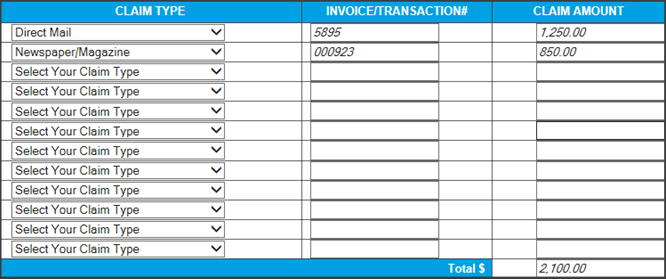
Enter "Claim Details" including claim type, invoice number and claim amount
Attached the required "Support Documentation"
Please Note: The notification message in red which states "Duplicate file names for more than one category as attachments is not allowed. Please copy and rename one of the files and reattach"

Scroll over the question marks (?) to view support document requirements

Enter any "Additional Comments" pertinent to the claim (optional)

Click "Submit" to submit the claim form

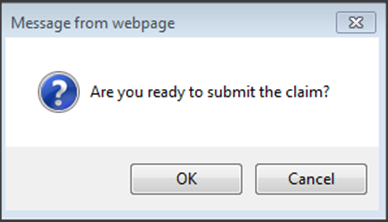
Successfully submitted claims will be assigned a unique transaction ID number
